| Error Message | Explanation |
|
|
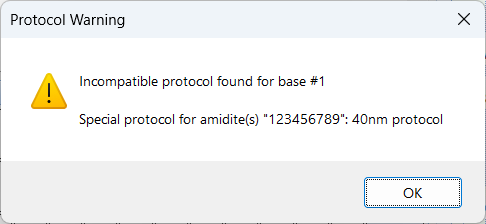
This error results from a mismatch in the Meta Protocol. Ensure that each "Special Protocol" has the same sequences and number of sections as the main protocol mentioned. 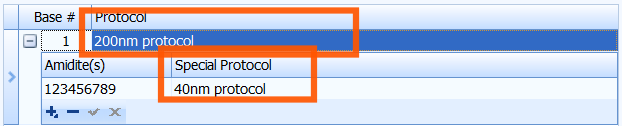 |
|
|
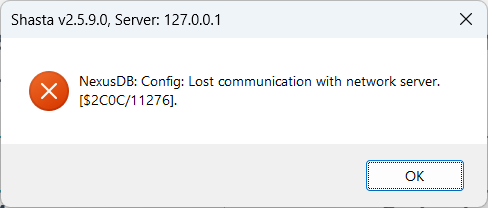
These errors can occur when the Shasta software temporarily loses communication with its local database service (NexusDB). Although the server is listed as 127.0.0.1 (localhost), the application relies on a background database process that can be interrupted by system sleep, high CPU usage, antivirus activity, or other Windows processes. This is a software communication issue and does not indicate a hardware fault. The issue is typically resolved by restarting the software or the computer. If the problem persists, ensure the Ethernet cable is connected to the correct port, that the cable is functioning properly and that the computer did not attempt to enter a sleep or hibernate state. To be safe, ensure your system is set to never go to sleep and that windows updates are schedule for time periods when the instrument is not being used. |
|
|
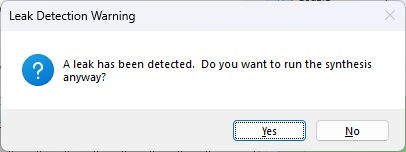
This warning will be present when liquid has is detected on the liquid sensor inside the instrument. Selecting "Yes" will continue the synthesis. Selecting "No" will stop the Synthesis. It is best to address the cause of the liquid leak before continuing the run. The liquid sensor must be completely dry in order to not trigger again. If the Sensor is dry, there might be an issue with am electrical connection |
|
|
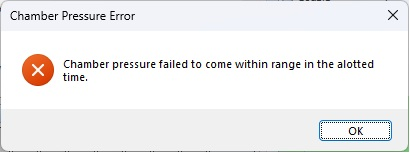
This error will appear when the chamber pressure sensor does not reach it's target pressure (Usually 2.5-3.0 PSI) within it's target time (Usually 60 seconds). This typically indicates that the instrument ran out of pressure, the pressure setting is too low or a malfunction is causing the sensor to not operate correctly. This must be addressed before continuing synthesis. |
|
|
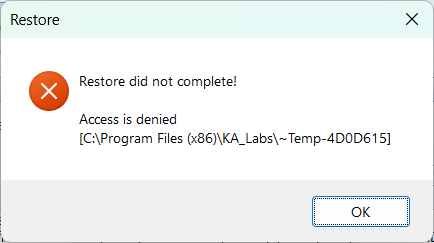
This message appears when a user attempts to use the Backup/Restore feature and the restore operation cannot complete because Windows denies access to the required files or folders. The “Restore did not complete. Access is denied” message typically indicates insufficient user permissions, restricted folder access, antivirus or endpoint protection interference, or files being locked by another process. This is a software access issue and does not indicate a hardware or instrument problem. Running the software with appropriate permissions and verifying access to the restore location usually resolves the issue. |
|
|
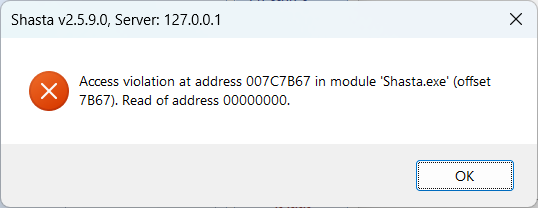
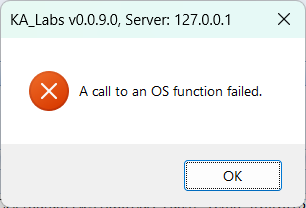
This error occurs when the software attempts to perform an operating system–level action (such as accessing files, allocating memory, or communicating over the network) and the request is denied. This typically happens when Windows temporarily blocks the action due to resource limitations, permission restrictions, antivirus interference, or background system processes. The error is software-related and does not indicate a hardware or instrument malfunction. In most cases, restarting the application or running it with the appropriate permissions(admin privileges) resolves the issue. |
|
|
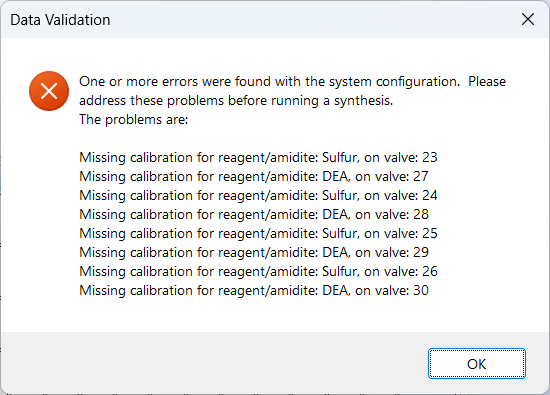
This error occurs when there are missing calibration points in the Dispense screen. This can occur when a new reagent or amidite is added or they are moved to a different location. To solve this error you need to enter the Dispense screen and add calibrations points for all the valves corresponding to the reagents in which the errors displayed. |
|
|
This error occurs when you are attempting to add a sequence to a well that already has a sequence. |