1. Recommended Computer Specifications for Shasta & K&A Software
-
Processor: Intel® Core i5, 12th Gen or newer(Comparable or Better will also work)
-
Memory (RAM): Minimum 8 GB
-
Storage: 256 GB SSD or larger (NVMe preferred)
-
Graphics: Integrated Intel graphics (UHD 770 or equivalent)
-
Operating System: Windows 10 or 11 (English)
-
Networking:
-
1× Gigabit Ethernet port (required for instrument connection; must be set to static IP 192.168.1.1)
-
Additional Ethernet port or USB-to-Ethernet adapter recommended if you want simultaneous local network/internet access.
-
-
Ports:
- 1x Gigabit Ethernet Port as mentioned above
-
1× DisplayPort or HDMI (dependent on Monitor
-
4× USB ports (at least 1 should be USB 3.0 or newer)
2. Software Version, Structure & Architecture
- Current software versions (always confirm the latest on the Release Notes page):
- Shasta: v2.5.10
- K&A Labs: v0.0.16.6
- Deployment model: Standalone (single-PC). The software is installed locally on the instrument-control PC. There is no central or network database server to provision, and no SQL Server dependency. Each instrument PC is fully self-contained.
- Architecture: The application uses a local NexusDB Server V3 database, which runs as a Windows service on the same PC. The client software communicates with this service over the local loopback address (
127.0.0.1), not over the corporate network. - Service behavior: Because NexusDB Server V3 runs as a system-level service, it starts automatically with Windows and operates independently of the logged-in user. A standard (non-admin) user does not need to start it manually.
3.Network Configuration
Refer to the following article: How to Set Up Network Communication with K&A or Shasta Software
-
Static IP (Instrument Connection)
-
IP:
192.168.1.1 -
Subnet:
255.255.255.0 -
Gateway/DNS: leave blank
-
-
Internal Network Access
-
The instrument PC is typically isolated from the corporate LAN.
-
If access to file shares or internal resources is required, add a USB-to-Ethernet adapter or a Wi-Fi adapter for the second connection.
-
Keep the primary NIC reserved exclusively for instrument communication.
-
4. Installation Checklist (If installing the Software)
Refer to these articles: Installing the K&A Software or Installing the Shasta Software
-
Install the Software
- Obtain the latest installer package.
⚠️Run the installer as Administrator. For on-site installs, having IT available to grant admin rights when needed speeds things up.
⚠️Install with the PC off the network. During setup NexusDB scans the subnet and may detect another instrument's database (all units ship with the same default config). This can block the local install or silently connect the software to the wrong database. Reconnect only after the software confirms a local ( 127.0.0.1) connection.
-
- Do NOT auto-launch after setup.
-
Install NexusDB
-
During installation, the NexusDB Database Server service will be installed.
-
Ensure the service is allowed to run and set to start automatically with Windows.
-
NexusDB is required for back-end database communication with KA_Labs/Shasta.
-
-
Restore Factory Settings
Refer to this article: How to Perform a Backup or Restore- Use a copy of Factory backup settings (.sbf) provided by Sierra Biosystems and follow the instructions in the above article to load it onto the software
- Use a copy of Factory backup settings (.sbf) provided by Sierra Biosystems and follow the instructions in the above article to load it onto the software
⚠️Before the end user can use the instrument they must load the factory settings onto the software
5. Power & Energy Settings
-
Check all network adapters (instrument NIC and any secondary USB-Ethernet or Wi-Fi adapters) in Device Manager → Network Adapter → Power Management.
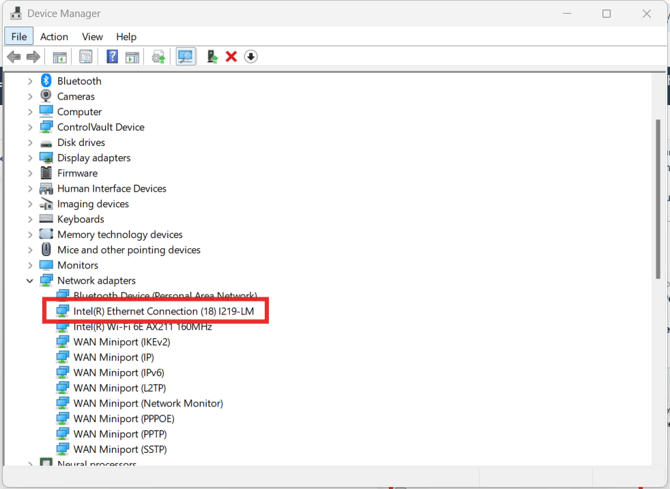
-
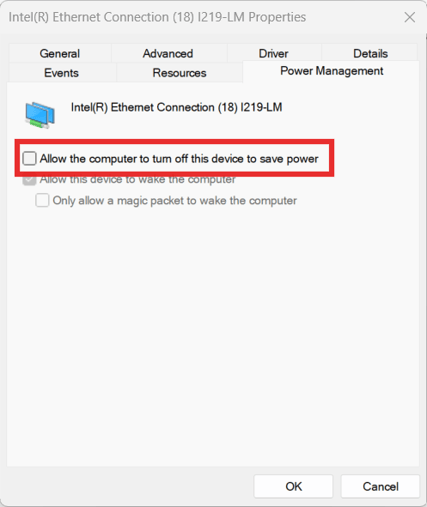
If the option “Allow the computer to turn off this device to save power” is present, uncheck it.
-
If the option is not available, no action is required for that adapter.
-
For the instrument NIC, disabling power saving is critical to prevent dropped communication during synthesis.
-
For secondary adapters, disabling power saving ensures stable file share access, backups, and remote connectivity.
-
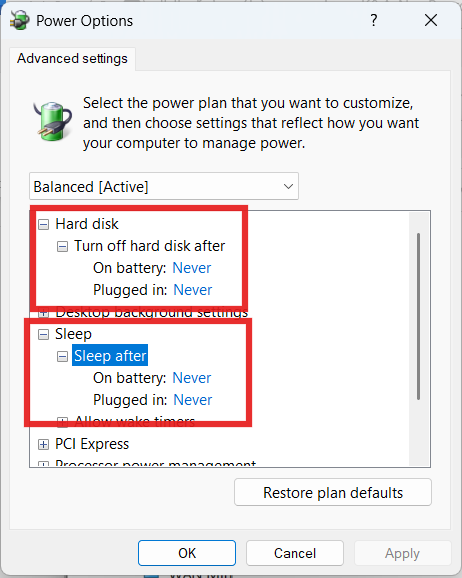
In Advanced Windows Power Options, set:
-
Sleep: Never
-
-
-
Hard disk: Never turn off during operation
-
6.File Locations & Standard-User Access
Where the software is installed
- The Shasta folder can be installed anywhere on the PC. Traditionally it is placed directly on the C: drive (e.g.,
C:\Shasta\), but it works equally well insideC:\Program Files (x86)\. The install location does not affect functionality. - The local database runs separately under
C:\ProgramData\NexusDB3\(a hidden folder). This is managed by the NexusDB Server V3 service, not by the user.
Standard-user (non-admin) access
- Normal day-to-day operation does not require administrator rights. Standard users can launch the software and run syntheses normally, because the NexusDB Server V3 service handles all live database activity at the system level.
- Backup and Restore functions benefit from administrator rights. Without elevated rights, a standard user may be unable to run a backup or restore. This is not needed for routine operation, but it does make troubleshooting more difficult if support ever needs a backup pulled.
- Recommendation for IT: Whitelist the install folder and
C:\ProgramData\NexusDB3\so the software is not blocked by endpoint security, and grant the standard-user account elevated rights (or local admin) if you want lab users to be able to perform their own backups. Otherwise, backups can be handled during a service/support session.
7. Security & Whitelisting
- Whitelist the following executables and services in antivirus/firewall policies:
Shasta.exe(orKA_Labs.exe)NexusDB Server V3service
- Administrator rights are not required for normal day-to-day operation. They are only needed for installation, updates, and the software's Backup/Restore functions.
⚠️ Warning: Without rights to write to
C:\ProgramData\NexusDB3\and the backup folder, users will not be able to save backups or use restore, which complicates troubleshooting. - NexusDB uses local loopback (127.0.0.1) to communicate with the client software.
- Normally this is always allowed.
- If endpoint security software is deployed, confirm loopback traffic is not restricted.
- Allow the following ports and addresses, inbound and outbound, on all firewall profiles (Windows Firewall and any endpoint or security software):
- Port 16000 - local NexusDB database connection (K&A and Shasta)
- Port 51519 - connection to the instrument (K&A and Shasta)
- Port 44818 - connection to the instrument (Shasta only)
- Allow the instrument addresses on the isolated 192.168.1.x link:
- 192.168.1.100 - instrument (K&A and Shasta)
- 192.168.1.201, 192.168.1.202, 192.168.1.220 - additional instruments (Shasta only)
- 192.168.1.1 - the instrument-side NIC on the PC (statically assigned)
- 127.0.0.1 - loopback, used by the local database service
- Confirm the network profile assigned to the instrument NIC. A link with no gateway is often tagged Public, which applies stricter firewall rules. Set that adapter to Private.
NOTE: If Manual Control works but the software cannot identify the instrument, or a run only clicks the valves on and off without dispensing, suspect the local firewall or endpoint software blocking port 16000 (the local database) or port 51519 (the instrument). Small manual commands can pass while the database connection and method traffic are blocked.
8. Backups
Refer to this article: How to Perform a Backup or Restore
-
The End User should Back up the software settings, methods, and log data regularly.
-
Store backups on:
-
A company file share (via second NIC or Wi-Fi adapter), or
-
An external USB drive if offline.
-
9. Windows Updates
-
Windows Updates cannot be controlled by Sierra/K&A.
-
Updates must be scheduled by IT outside of synthesis runs to prevent costly interruptions.
-
Apply updates during planned downtime or after synthesis jobs complete.
- Restarting the computer occasionally can help prevent forced updates
10. Summary Table
| Step | Action |
|---|---|
| 1 | Verify OS/hardware meet requirements |
| 2 | Confirm software version and standalone/NexusDB architecture |
| 3 | Configure static IP for instrument NIC |
| 4 | Add second adapter if file share/internal access is required |
| 5 | Install Shasta/KA_Labs software as Admin |
| 6 | Install and allow NexusDB Server V3 service |
| 7 | Whitelist install folder + C:\ProgramData\NexusDB3; grant standard users read/write; allow firewall ports 16000 and 51519 (44818 for Shasta) |
| 8 | Disable power saving on all adapters |
| 9 | Establish backup plan (admin rights needed for backup/restore) |
| 10 | Apply Windows Updates only outside of active synthesis |