🧰 Tools & Requirements
-
Administrator access to the computer
-
Access to the latest
KA_Labs.exeupdate file (provided by Sierra Bio or K&A team) -
Existing installation of K&A Labs Software
-
Optional: Access to internal IT if permissions are restricted
⚠️CAUTION
We recommend creating a backup of your settings before updating the software. Here is an article on how to perform a backup or restore: How to Perform a Backup or Restore on the Synthesizer Software
🛠️ Step-by-Step Software Update Instructions
1. Locate the Installation Folder
Navigate to the folder where the K&A software is installed:
-
C:\KA_Labs\
2. Replace the Executable
-
Copy the new
KA_Labs.exefile into theC:\KA_Labs\folder.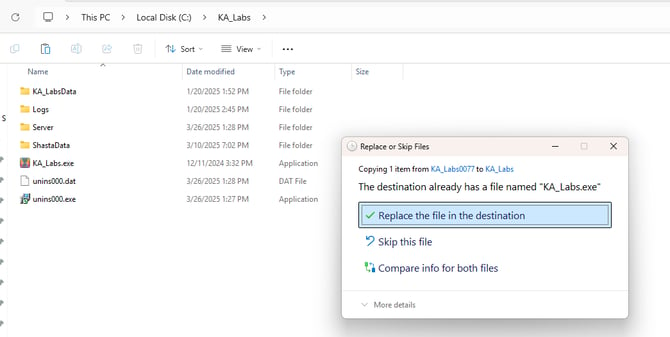
-
When prompted, allow the file to replace the existing one.
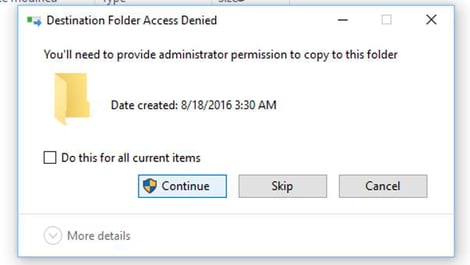
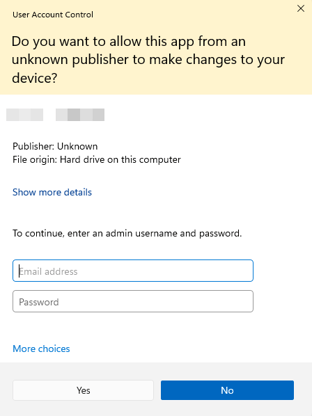
⚠️ If prompted for admin rights, enter your administrator password.
❌ If you don’t have admin access, contact your IT department for assistance.
3. Check Shortcut Properties
If you use a desktop or taskbar shortcut to launch the software:
-
Right-click the shortcut > click Properties
-
Ensure the Target path is:
-
C:\KA_Labs\KA_Labs.exe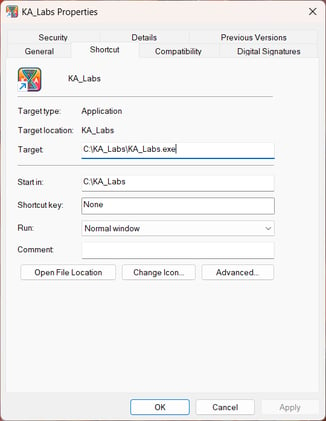
-