When to Use Backup and Restore
-
Backup: Before making major changes (software update, hardware replacement, or computer changes).
-
Restore: To roll back to a previous working state if something goes wrong after an update or accidental changes.
Backup Steps
-
Open the Software
Launch the software -
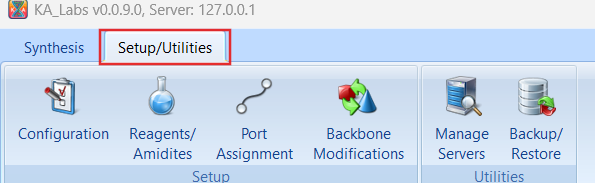
Go to Setup/Utilities Menu
-
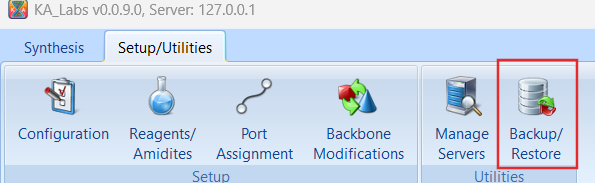
Select Backup/Restore option.
-
-
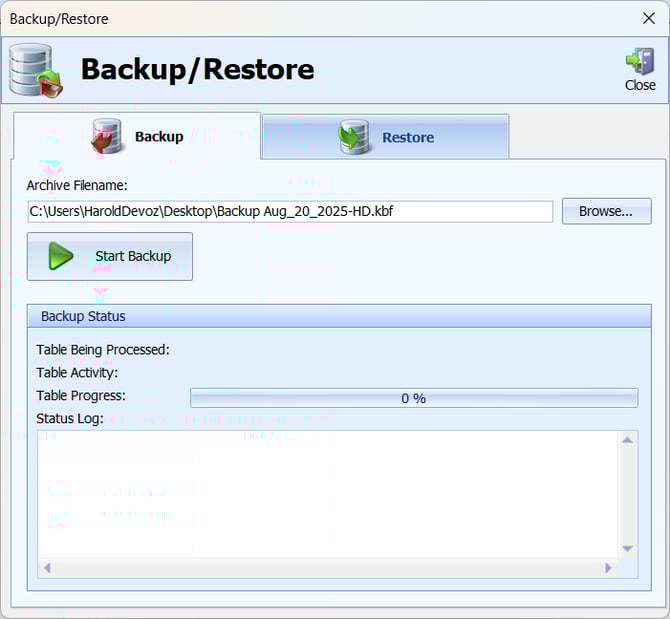
Start Backup
-
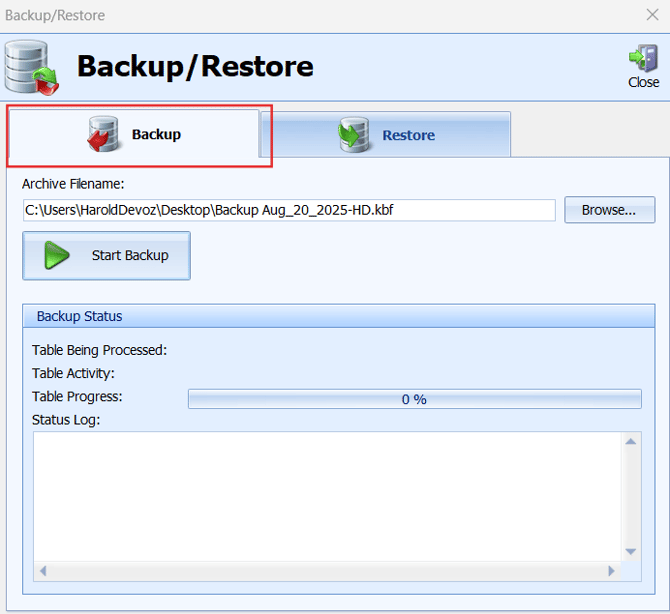
Click the Backup tab if not already selected.
-
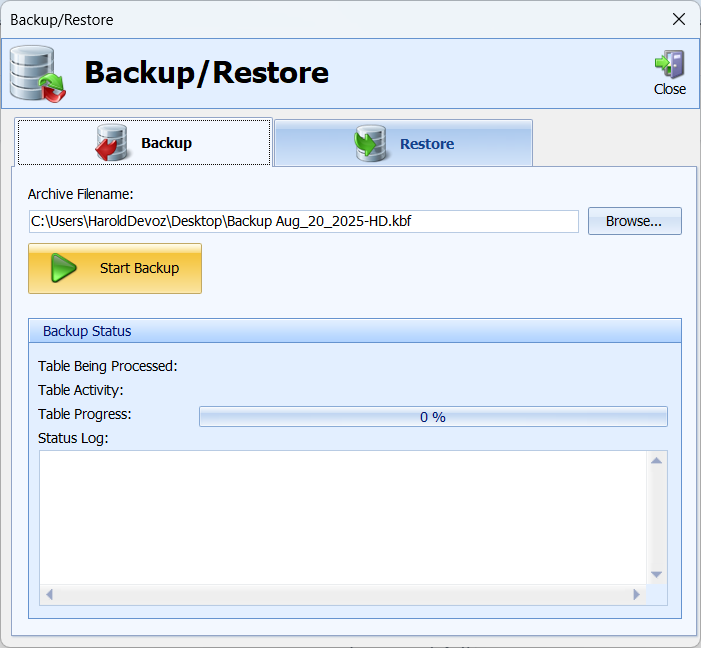
Enter a name and save location for your backup (e.g.,
Backup_Aug2025_PreUpdate) It is recommended that a local copy as well as an external copy on either an external drive, company network drive, or cloud folder is kept. - Select the Start Backup Button
-
-
Complete Backup
-
The system will confirm when the backup is finished.
-
Keep a copy in a safe place and do not overwrite old backups unless necessary.
-
Restore Steps
⚠️ Warning: Restoring will overwrite your current settings and data. Only restore when you are sure you want to roll back.
-
Open the Software
Launch the Software -
Go to Setup/Utilities Menu
-
-
Select Backup/Restore option.
-
-
-
Select Restore
-
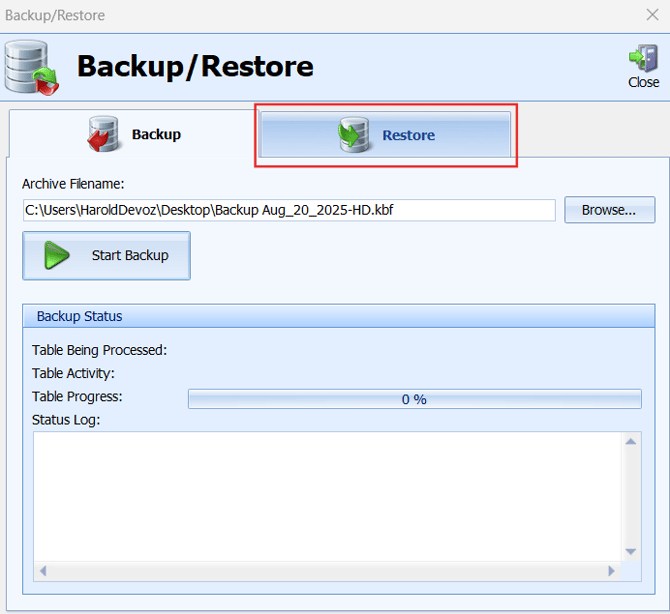
Click Restore tab if not already selected.
-
Browse to the backup file you previously saved.
-
-
Confirm Restore
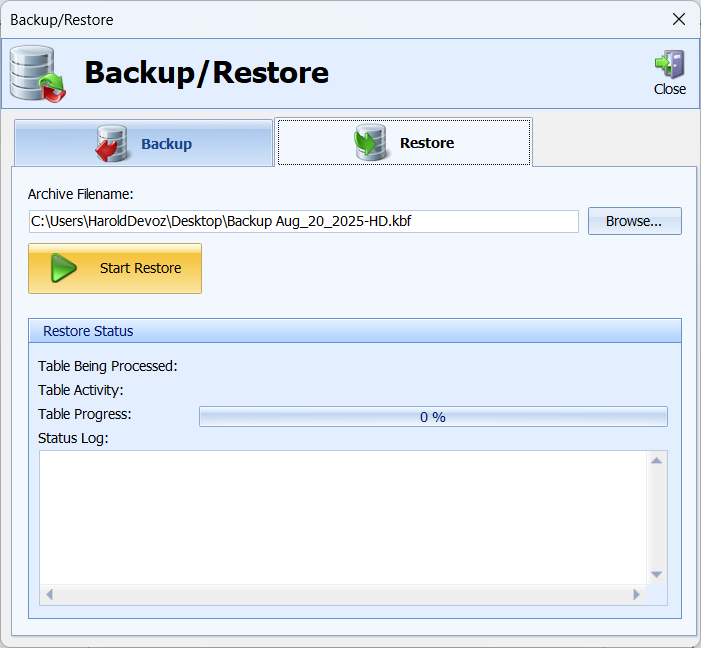
- Select Start Restore
-
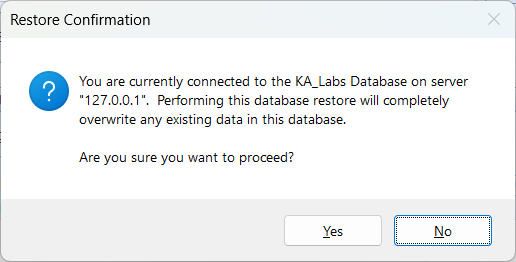
The software will warn that current settings will be replaced.
-
Click Yes to continue.
- Select Start Restore
Best Practices
-
Perform a backup at least once a month or before any major changes.
-
Save backups locally and to a secure location outside the local PC (network drive or external hard drive).
-
Keep multiple backups so you can roll back to different points in time.
Troubleshooting
-
Can’t find your backup? Check the folder path you selected when creating the backup.
-
Restore fails? Ensure the backup file wasn’t moved or renamed incorrectly. File extensions should not be changed.