
1. Check Windows Event Logs for Ethernet or Software Errors
Both Shasta and KA Labs Software communicates with the instrument via Ethernet, and connection issues often leave traces in Windows logs.
Steps:
-
Press
Windows + R, typeeventvwr, and press Enter. -
Look under:
-
Windows Logs > System – Look for errors from
e1dexpress,NETLOGON, orTcpip. -
Windows Logs > Application – Look for application errors referencing
KA_LABs.exe,Shasta.exe,.NET Runtime, orNexusDB.
-
-
Note timestamps and export any suspicious events:
-
Right-click > Save All Events As… (we prefer
.evtxformat)
-
2. Capture Symptoms When KA_LABs or Shasta Freezes or Crashes
If the software becomes unresponsive:
-
Note what you were doing right before the freeze/crash.
-
Press
Ctrl + Shift + Escto open Task Manager, and check:-
CPU or memory usage of
KA_LABs.exeorShasta.exe -
Status as "Not Responding"
-
-
Take a screenshot of any error or the frozen screen.
3. Check for Windows Update Interruptions
Windows updates may cause surprise reboots or suspend services like NexusDB.
To check:
-
Go to Settings > Windows Update
-
Review update activity around the time of the issue
-
Consider pausing updates during active synthesis runs
🧠 4. Look for Memory or Crash Issues
Low RAM or memory leaks in KA_LABs/Shasta or NexusDB can lead to instability.
Use Task Manager:
-
Go to Performance > Memory
-
Check memory usage when the issue happens
-
If consistently above 80–90%, consider upgrading RAM or closing background apps
Also:
-
Search Reliability Monitor (
Start > Reliability Monitor) for recent crash reports or critical errors
5. Backup
Backing up files helps us reproduce the problem and preserve your work. A backup will copy your sequence files, protocols and other configuration settings. 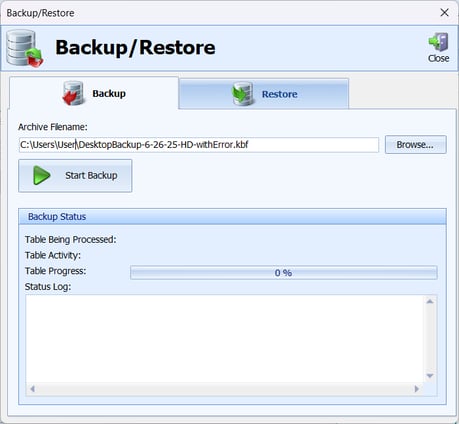
6. Finding and Sending Us Log Files
The KA_LABs and Shasta log files provide timestamps and system interactions. Typically the Logs folder is located in the same folder as the executable
Where to find:
-
Logs:
C:\KA_LABs\Logs\orC:\Shasta\Logs\
To send:
-
Zip the log folders
-
Upload them to your support ticket or send by email
🔌 7. Power Settings Can Affect Software and Ethernet Stability
Windows may try to conserve energy by disabling the Ethernet port or hard drive, which can cause drops in communication to the instrument.
What to change:
-
Go to Control Panel > Power Options
-
Select High Performance or create a custom plan
-
In Advanced Settings, ensure the following:
-
Sleep > Put the computer to sleep = Never
-
Hard disk > Turn off after = Never
-
USB settings > USB selective suspend = Disabled
-
PCI Express > Link State Power Management = Off
-
-
Go to Device Manager > Network Adapters
-
Right-click Ethernet > Properties > Power Management
-
Uncheck “Allow the computer to turn off this device to save power”
-
What to Include in When Reporting a Bug
When you submit a ticket, please provide:
-
A short description of what happened
-
Screenshots or error messages (if applicable)
-
Exported Event Viewer logs (
.evtx) -
Backup
-
Info about power settings and recent Windows updates